How to make a pixel art walk cycle
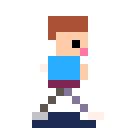
The four poses
A walk looks complicated, but a small sprite needs very little. Four frames carry it, and they are really two poses used twice, once for each leg.
- Contact. The front heel has just touched down and the back foot is about to leave. Legs are at their widest apart, the body is at its lowest, and the arms are at their widest too, each one opposite the leg on its side.
- Passing. The back leg swings forward past the one holding the body up. The legs are close together, and the body is at its highest, one pixel above where it was in contact.
- Contact again, with the other foot in front, and the arms swapped.
- Passing again, with the other leg swinging through.
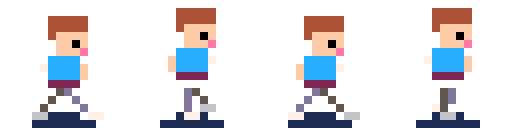
The up and down bob is the part beginners skip, and it is what makes a walk feel like weight. In the Walk starter the head and body sit one pixel higher on the two passing frames, and that one pixel is enough.
Steps
- Start small. Choose File, then New sprite (Alt+N), and pick a size. 16 by 16 is a good first size: you will place every pixel on purpose. 32 by 32 gives room for a face and hands.
- Draw the contact pose in frame 1. Start with the head and body as simple blocks, then the legs as two diagonal lines, then arms. Keep the feet on the same row, since both are on the ground.
- Duplicate it. Press D, or the duplicate button in the timeline. The copy lands right after the frame you were on and becomes the current one, so you can change it straight away.
- Make the passing pose in frame 2. Pull the legs together so one is almost under the body and the other is bent and lifted. Then lift the head and body one pixel: choose select (M), select the upper body, and nudge it with the up arrow. Each arrow press moves the selection one pixel, and Shift moves it eight.
- Duplicate frame 1 again for the third pose, and swap the legs and the arms so the other foot is forward.
- Duplicate frame 2 for the fourth pose and swap the legs again.
- Check with onion skin. Press O for Ghosts. The frames before and after show as faint tints, one orange and one violet, so you can see where each foot was and where it goes next. Press the bracket keys to show fewer or more ghost frames.

Timing and speed
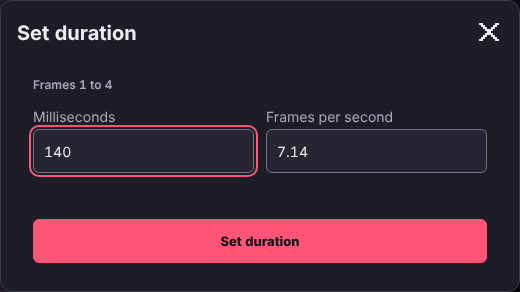
The starter shows each frame for 140 ms, so one step takes 280 ms and the full cycle of two steps takes 560 ms. A slower walk reads as tired or heavy, and a quicker one as hurried. Try 100 ms for a brisk walk and 180 ms for a stroll, and trust your eye.
To set the time for all four at once, tap frame 1, shift-tap frame 4, and use the clock button in the bar that appears. The dialog takes milliseconds or frames per second, and each fills in the other. You can also give one frame a longer hold, which is a cheap way to add character: a slightly longer contact frame gives the step a heavier landing.
Press Space to play. If the cycle has a hitch, play it a few times with your eyes on the feet, then look at the frame where the hitch lands.
Common problems
- The feet slide. A foot on the ground should move backwards across the screen at the speed the body would move forward. In a walk that stays in place, if the feet seem to skate, make the step shorter, or let the ground foot travel a little further between frames.
- The walk looks stiff. Check the arms. They swing opposite to the legs, and the swing is wider on the contact frames.
- It bounces like a ball. The bob is one pixel, on two frames. Two pixels on a 16 pixel sprite is a hop.
- The silhouette changes size. Use onion skin and compare the head and shoulders from frame to frame. They should only move up and down.
- It looks choppy. Four frames is a minimum. Duplicate each frame and draw halfway positions between them for an eight-frame cycle, which is how the home page walker is built.
Tag it and export
Tag the four frames so an engine can find them. Select all four, use the tag button in the bar that appears, name it "walk" and leave the direction on Forward. In the Tags dialog, turn on Loop this tag when playing and Play loops just that tag.
For a GIF, open File, then Export, and pick GIF. For a game, choose Spritesheet instead, which writes a PNG and a JSON file with your tag in it. The sprite sheet guide covers the layouts, and the Godot guide turns tags into animations. If you start from a sheet that already exists, this guide shows how to cut it into frames.
Open the Walk starter as your own copy to see all of this in place. Each time you open it you get a new project, and the original is never changed.