How to make a pixel art idle animation

What an idle is for
An idle is what a character does when nothing is happening. In a game it plays for most of the time the player is looking at the character, so it should be quiet enough to ignore and alive enough that the character does not look frozen. That is a small target, and it is why a good idle is mostly restraint.
The most common idle is a breath: the head and shoulders sink a little and rise again. Others are a blink, a tail flick, a shift of weight from one foot to the other, or a bit of cloth that sways. Pick one, and do it well. Doing three at once looks restless.
The idle on this page is the breathing kind, on a 16 by 16 sprite. It is four frames and loops in 1.4 seconds.
Steps
- Draw the rest pose. Frame 1 is your character standing, relaxed, feet planted. Make this the best frame, since it shows for the longest.
- Duplicate it with D. Now change one thing by one pixel. Here the head and shoulders go down one pixel while the legs and feet stay put. Select everything above the belt with the select tool and nudge it down with the arrow key, or redraw the rows by hand.
- Duplicate again for the low point, and squash the torso by one pixel, so the body is a pixel shorter, with the arms a pixel lower. This is the breath out.
- Duplicate the second frame for the way back up. Frame 4 is frame 2 again, so the loop goes rest, down, low, down, and back to rest.
- Look at it with ghosts on. Press O. When the tints of the neighbouring frames sit almost on top of each other, the movement is small enough. If you can count the pixels it moved, it is probably too much.

Timing and speed
This is where an idle comes alive. If every frame shows for the same time, the movement ticks along like a metronome. Uneven times read as breath: a long pause at rest, a quick move, a pause at the low point, a quick move back.
The idle here uses 600 ms on the rest pose, 150 ms on the move down, 500 ms on the low pose and 150 ms on the move up. Set each by selecting the frame and typing in the Duration box beside the timeline, or use Alt+U to open the duration dialog. Times run from 10 to 65535 ms.
Slow it down further for a sleepy character, or speed the moves up for a nervous one. The total length of the loop is what the player feels, so a few hundred milliseconds either way changes the mood a lot.
Other ways to loop it
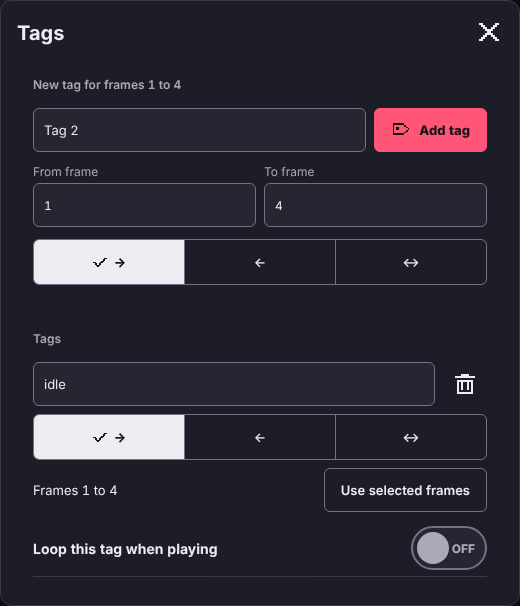
Ping-pong. Instead of drawing the way back, draw the way down once and let the tag play it forwards and then backwards. In the Tags dialog set the direction to Ping-pong and turn on Loop this tag when playing. Three frames, rest, down, low, play as rest, down, low, down, rest, and so on, and neither end frame is shown twice. That is one drawing saved, and it is what many engines do with a ping-pong tag.
Note that a GIF does not use tags. It plays every frame in the timeline, in order, once through, and then loops. If you want a back-and-forth in a GIF, put the return frames in the timeline, as the idle on this page does.
Common problems
- It looks like it is vibrating. The move is too fast or too big. Hold the rest pose longer, and keep the move to one pixel.
- The feet wobble. Only the upper body should move. Check the rows around the feet in each frame with the grid on (Ctrl+') and the ghosts showing.
- It is too busy. You have more than one idea in it. Cut it back to one.
- It does not loop cleanly. The last frame must lead into the first. Play it once and watch the seam between frame 4 and frame 1.
Tag it and export
Tag all four frames as "idle". For a GIF, open File, then Export, and choose GIF. For a game, choose Spritesheet, which writes a PNG and a JSON file that carries the tag and the times, and the Godot guide shows how a tag becomes an animation.
Open this idle as your own copy to look at how it is built. Each time you open it you get a new project, and the original is not changed. When you are ready for something louder, the explosion guide is next.