Game Boy palette: four greens with hex codes

The Game Boy palette
The Game Boy screen showed four shades, and the palette that emulators use for them is four greens, from nearly black to a pale yellow-green. Four colours is the smallest palette most pixel artists ever use.
| Colour | Swatch | Hex | RGB |
|---|---|---|---|
| 0, darkest green | #0f380f | 15, 56, 15 | |
| 1, dark green | #306230 | 48, 98, 48 | |
| 2, light green | #8bac0f | 139, 172, 15 | |
| 3, lightest green | #9bbc0f | 155, 188, 15 |
The colours run from darkest to lightest, which is also the order the editor lists them in.
To use these colours in another program, copy the list. It is one hex code per line, with no hash, which is the shape most palette pasters want.
0F380F
306230
8BAC0F
9BBC0FAbout Game Boy
The Game Boy came out in 1989 with a 160 by 144 pixel screen that showed four shades of olive green. The exact tone depended on the screen, the light in the room and the age of the console, so there is no single true value. The four on this page are the ones emulators and fan art use most often. A lot of game jams use the four greens as a limit, because with so little choice a picture is finished when the shapes are right.
- The darkest green, #0f380f, is close to black. Use it for outlines and for the text of a title screen.
- The two lightest greens, #8bac0f and #9bbc0f, are close together. Use the lightest for the background and the other for large shapes, so the difference reads.
- Four shades means three steps of shading at most. Put the middle two where light meets shadow, and leave the rest flat.
Use it in the editor
The palette is built in, so you do not need to paste anything.
- Open the editor and open the palette menu: the three dots at the top of the palette panel.
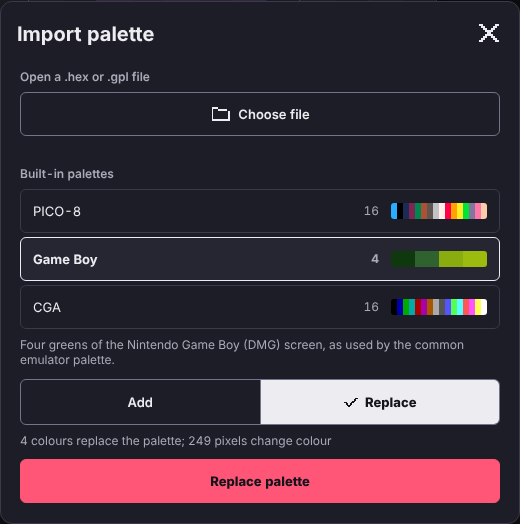
- Choose Built-in palettes, then Game Boy.
- Choose Add to put its colours after the ones you have, or Replace to swap your palette for this one. A line shows what will happen before you commit, for example how many pixels change colour.
- Press the button at the bottom. The whole change is one step, so Undo takes it back.
The editor cannot take a palette from a link, so the sample above does it another way. Open it in the editor with this palette opens the little walker as your own copy, with the palette already loaded. Clear the canvas or draw over it, and the palette stays. The original is never changed, and each time you open it you get a new project.
How the sample was made
The sample is the Walk starter, which is drawn in the PICO-8 palette. For the other palettes, each colour was swapped for the nearest colour in the new palette, measured as the distance between the two colours in red, green and blue. That is exactly what Replace does in the editor, so the sample shows what you would get, not a touched-up version. Sometimes the nearest colour is not the one you would pick by eye, and that is where you step in and fix a few pixels.
The picture was made at 16 by 16 pixels, with each pixel drawn as a block of 8 by 8 on screen, so the edges are sharp.
Tips for this palette
- With four shades, contrast does everything. Use the darkest green for outlines and the deepest shadows, and the lightest for highlights and the background.
- Keep shapes bold. Fine detail needs more than two mid tones to read, so simplify the sprite rather than squeezing it.
- Make a sprite in another palette first and apply this one with Replace: each colour moves to the nearest green, and you can fix what does not read. That is how the sample below was made.
Where it comes from
These are four greens of the Nintendo Game Boy (DMG) screen, in the values the common emulator palette uses. Game Boy is a trademark of Nintendo, and PixelFlipbook is not affiliated with Nintendo. Colour values are facts about hardware, not artwork.
Lospec, the palette site that most pixel artists know, lists many more palettes, each with its author named. Find more at Lospec. The editor's Browse palettes button reads that list directly when you open it, so authors are credited where they published. Palettes from Lospec are not copied onto this site. We found no licence for reuse in Lospec's terms, so this site only shows the palettes that ship with the editor.
Other palettes here: PICO-8 palette, CGA palette, and the palette index. To edit, import or keep colours exact, read the palettes guide.