Palettes for pixel art: edit, import and keep colours exact
Indexed colour: why the palette matters
New sprites in PixelFlipbook use indexed colour. Each pixel does not store a colour; it stores a number that points into a palette, and the palette stores the colours. This is how classic pixel art worked, and it has practical benefits that matter to anyone who wants consistent art.
Change one swatch and every pixel that uses it changes with it, instantly, without touching the pixels. The palette contains only colours you put there, so it never fills up with near-duplicates from careless picking. Files are smaller, and exports can be indexed PNGs with exactly your palette. If you ever need arbitrary colours, there is a full-colour mode, and converting from indexed to full colour is always lossless.
Index 0 is always transparent, and cannot be edited or deleted. A palette holds up to 256 entries, so 255 opaque colours plus transparent. The checker tile you see as the first swatch is that transparent entry.
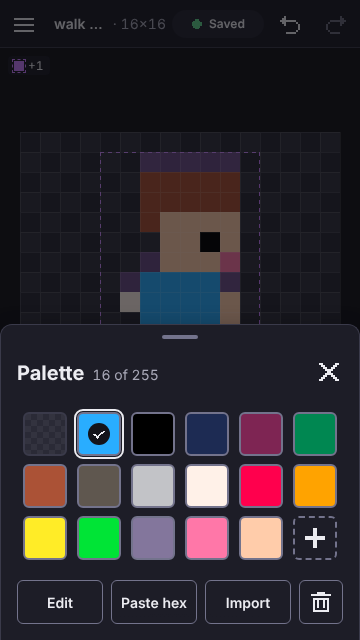
Adding and editing colours
Tap the plus swatch to add a colour, or press and hold an existing swatch to edit it. Both open the colour sheet: a large preview, a hex field and three sliders for hue, saturation and value. The hex field is the source of truth. The sliders write into it, and the stored colour is never recomputed from them, so a hex value you type is exactly what you get. Dragging a slider counts as one gesture and adds a single undo step, however far you drag.
If you add a colour that already exists, nothing is duplicated: the sheet says so and selects the existing swatch. The add button is disabled once the palette holds 255 colours, with a hint that it is full.
Deleting a colour depends on whether it is in use. An unused colour is removed and the indices above it shift down by one, which the undo reverses. If pixels use it, a dialog tells you how many, for example "4 pixels use this colour", and asks which colour to put in its place before deleting. Nothing is lost without asking.
Your primary and secondary colours remember the colour itself, not the index, so they stay right when the palette changes around them. If you delete a colour you are holding, the editor switches to the nearest colour and tells you once.
Importing palettes: hex lists, .hex and .gpl
Palettes are easy to find and awkward to type, so there are three ways in. All of them are one undo step.
- Paste a hex list. One colour per line, with or without the leading
#. Lines that start with a semicolon are comments. Lines that are not colours are skipped, and the editor tells you how many it ignored. - Import a .hex file. This is the plain format used by Lospec: one six-digit hex value per line.
- Import a .gpl file. This is the GIMP palette format, with a header followed by lines of red, green and blue values and a name. It is also what Aseprite and several other tools can export.
#1a1c2c
#5d275d
#b13e53
#ef7d57
#ffcd75
; this is a comment
#a7f070
Then choose how to apply it. Replace swaps the palette and maps every existing pixel to the nearest new colour by distance in RGB, with ties going to the lower index. Use it to re-colour finished art. Add appends the new colours and skips exact duplicates, which is the safe choice when you just want more options. If the list would take the palette past 255 colours, the first 255 are used and the editor tells you how many were skipped.
Looking for palettes to import? Lospec's palette list has thousands, with a download button for the .hex and .gpl formats. We link to it and do not copy from it. Check the licence or the artist's notes on a palette if you plan to publish with it.
Built-in palettes
Three palettes are built in, so you can start with something that works. New sprites use PICO-8.
| Palette | Colours | Good for |
|---|---|---|
| PICO-8 | 16 | Bright, readable colours that work for almost any small sprite. The default. |
| Game Boy | 4 greens | A strict four-shade look. It forces you to think in value. |
| CGA | 16 | The IBM text-mode colours: saturated, hard and unmistakable. |
Applying a built-in palette defaults to Add. Switch to Replace and the editor previews how many pixels would change before you commit, and the whole replacement is one undo step, so you can try a palette, look at the result and take it back.
The Game Boy palette is four greens: 0f380f, 306230, 8bac0f and 9bbc0f. Try mapping an existing sprite onto it with Replace to see how well your values hold up with only four shades.
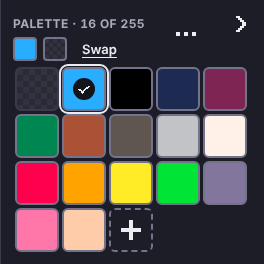
Palettes and exports
Because the palette is exact, so are the exports. An indexed doc exports an indexed PNG whose palette is your palette, and a GIF that uses it directly, with index 0 as the transparent colour. If you used layers with partial opacity, the composite needs colours the palette does not hold, and the export report says that it fell back to full colour. Staying inside the palette, with layers at full opacity, is what keeps the output indexed.
Coming from Piskel? Your colours come across exactly. A sprite with 255 colours or fewer opens with an indexed palette of those colours in order of first appearance, and a sprite with more opens in full-colour mode with a banner that offers to convert it, which is refused above 255 colours rather than silently merging them. The Piskel guide has the details.
To experiment, open the blink starter, then swap its palette for Game Boy with Replace and see the preview of changed pixels.