A free Aseprite alternative in the browser

What it is, and what it is not
Aseprite is the tool most pixel artists reach for, and for good reason. It is deep, fast and has been refined for years. It also costs money to buy as a finished program, and it lives on a desktop computer. If that suits you, keep using it.
PixelFlipbook is a smaller, free tool for the same core job: draw a few frames, see them move, and get them out as a GIF or a sheet. It runs in a browser tab, so it works on a laptop you do not own, on a tablet, and on a phone. There is no account, no install and no upload. Your sprites are stored in your own browser, and a share link holds the animation inside the link itself.
This page is honest about the gaps, because the worst outcome is that you start a project here and hit a wall at the end.

What is covered
- Frames and timing. Up to 256 frames, each with its own duration from 10 to 65535 ms. Duplicate, delete, reorder by dragging, select a range and set them all at once.
- Onion skin. Ghosts of the frames before and after, one to several deep.
- Layers. Up to 64 layers with names, opacity, hide and lock, and eight blend modes: Normal, Multiply, Screen, Overlay, Add, Subtract, Darken and Lighten. A cel can also be linked to the one before it, so several frames show (and edit) one picture.
- Tags. Name a range of frames and give it a direction: forward, reverse or ping-pong. Tags are written to the JSON, and Play can loop a tag.
- Palettes. Indexed colour with up to 255 colours plus transparent. Change a swatch and every pixel that uses it follows. Paste a list of hex codes, import a .hex or .gpl file, or pick one of the built-in palettes. A browser for the Lospec palette list is built in.
- Tools. Pencil, eraser, bucket (connected or global), picker, line, rectangle and ellipse (outline or filled), rectangular select, magic wand and move. Mirror modes draw on both sides of an axis, or repeat around a centre in four or eight ways. Select has flip, rotate and scale by two or a half.
- Touch. One finger draws, two move and zoom, and a precision cursor places exact pixels. This is where it differs most.
- Also built in. A play test, a retro handheld screen, a 3D spin, colour cycling, a timelapse and a photo-to-pixel-art tool.
What is missing
- .aseprite files open, but not everything in them does. Layers, frames, tags, durations and the palette come across. Blend modes with no match here, user data, slices and tilemaps are dropped, and the editor tells you which after each import. The guide to opening an .aseprite file has the full list.
- No tilemaps or tilesets, no slices, no 9-patch data and no reference layers.
- No scripting or extensions. There is nothing to install and nothing to automate.
- Only eight blend modes. Normal, Multiply, Screen, Overlay, Add, Subtract, Darken and Lighten. Color Dodge, Color Burn, Hard Light, Soft Light, Difference, Exclusion, Hue, Saturation, Color, Luminosity and Divide are not here. Everything that cannot carry a blend (PNG, GIF, sprite sheets and share links) gets the picture as it looks, blended.
- A smaller canvas. A sprite is up to 512 by 512 pixels.
- Your work lives in the browser. There is no cloud storage. Export a .pxl file for anything you want to keep, because browsers can lose data.
If one of those is a deal-breaker, that settles it. If none is, the rest of this page is about moving across.
Moving a sheet across
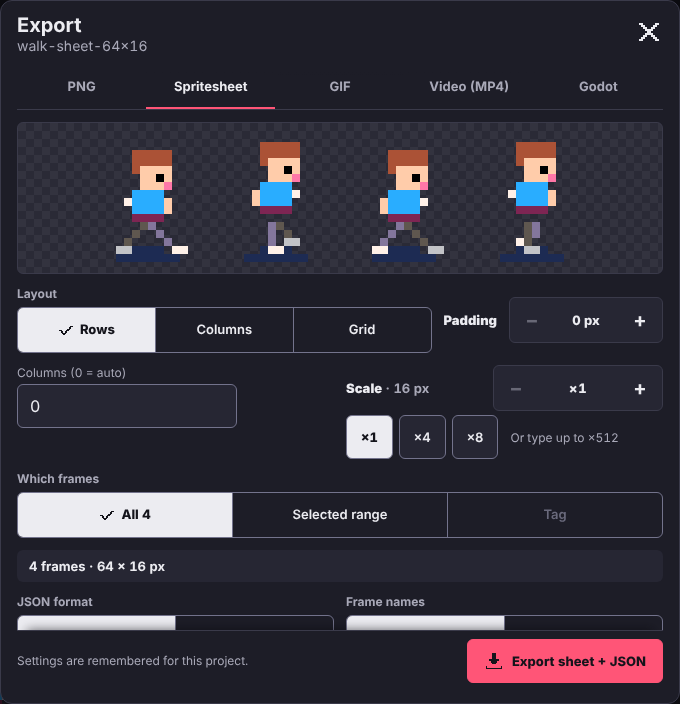
The direct route is the file itself: open the .aseprite file from the File menu or drop it on the editor, and it becomes a new project with its layers, frames and tags. The editor can also save a project as .aseprite from the Export dialog. Aseprite itself was not used to check those files, so open one in Aseprite before you rely on it. The other route is the sprite sheet. In Aseprite, export a sprite sheet and tick the option to also save the JSON data. Then drop the PNG and the JSON on the PixelFlipbook editor together. The JSON tells PixelFlipbook where each frame sits and how long it shows, so the sheet opens as an animation with its timing and its tags. Both the array and the hash layouts are read. A flattened sheet has no layer data, so you get one layer.
Going the other way works too. The sheet export writes a PNG and a JSON in the Aseprite format, so a game engine or a tool that reads Aseprite JSON reads it without changes. Frame names can be plain numbers, which Phaser expects, or Aseprite style. The Aseprite JSON guide has the details and an example.
For a quick look at what you get, turn a sheet into a GIF in a minute, with nothing to install.
Which one to use
Use Aseprite when you need its depth: tilemaps, slices, scripts, big canvases, a large pool of tutorials and a community that knows it. Use PixelFlipbook when you want to draw on a phone or tablet, when you are on a machine you cannot install software on, when you want to send someone a link instead of a file, or when you want a free tool for small sprites and quick animations.
They also work well together. Sketch a walk on your phone, export the sheet, and open it in Aseprite later, or the other way round. Neither locks you in: the sheet and the JSON are plain files.
Brand names belong to their owners. PixelFlipbook is its own program and is not affiliated with Aseprite or its makers.
Coming from Piskel instead? The Piskel guide covers that move, and the walk cycle guide is a good first animation to draw.