The Aseprite JSON format, field by field
What the format is for
Aseprite, the pixel-art editor, can export a spritesheet together with a JSON file describing it. The format became a de facto standard for small games: engines, frameworks and asset pipelines read it directly, and many other tools write it so that the same loaders work. PixelFlipbook writes the same structure, so a sheet from here can go to code that expects an Aseprite export.
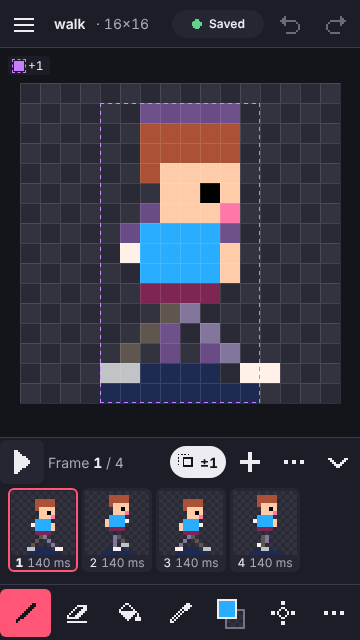
The JSON has two jobs. It tells your code where every frame sits on the sheet, and it carries what the image cannot: how long each frame lasts, and which frames make up which animation. Here is a real export for the four-frame walk: the first entry of frames in full, then the whole meta block. The other three entries have the same shape.
{
  "filename": "0",
  "frame": {
    "x": 0,
    "y": 0,
    "w": 16,
    "h": 16
  },
  "rotated": false,
  "trimmed": false,
  "spriteSourceSize": {
    "x": 0,
    "y": 0,
    "w": 16,
    "h": 16
  },
  "sourceSize": {
    "w": 16,
    "h": 16
  },
  "duration": 140
}
{
"meta": {
"app": "https://pixelflipbook.com",
"version": "1.0.0",
"image": "walk.png",
"format": "I8",
"size": {
"w": 64,
"h": 16
},
"scale": "1",
"frameTags": [
  { "name": "walk", "from": 0, "to": 3, "direction": "pingpong" }
],
"layers": [
{
"name": "Layer 1",
"opacity": 255,
"blendMode": "normal"
}
],
"slices": []
}
}
The frames list
Each entry describes one frame, and the field names are Aseprite's:
| Field | Meaning |
|---|---|
filename | The frame's name: by default the zero-based index in sheet order, "0", "1" and so on (Aseprite's {frame} filename format). An option writes Aseprite-style names, the project title, a space, the index and .png, for example walk 0.png. |
frame | The rectangle on the sheet: x, y, w, h in pixels. |
rotated | Always false. Frames are never rotated to pack tighter. |
trimmed | Always false. Transparent borders are kept, so every frame is the full canvas size. |
spriteSourceSize | Where the trimmed content sat in the original. With no trimming it is the whole frame at 0, 0. |
sourceSize | The size of the original canvas, w and h. |
duration | How long the frame is shown, in milliseconds. |
No trimming is deliberate. Pixel-art animation depends on the character staying put inside a fixed frame, and trimmed frames would force every consumer to apply an offset. If you need trimmed output, a dedicated packer can run over the sheet afterwards.
The meta block
The meta object describes the whole sheet:
appandversion: who wrote the file. The app is this site's address.image: the PNG file name, so a loader can find the texture next to the JSON.format:RGBA8888for a full-colour sheet orI8for an indexed one.size: the sheet's width and height in pixels.scaleis the export scale as a string,"1"unless you exported the sheet enlarged, and the frame rectangles then use the enlarged pixels.frameTags: your animations. Each hasname,fromandtoas inclusive frame indices, anddirection, which isforward,reverseorpingpong.layers: the layer names, with opacity and blend mode. Layers are flattened into the sheet, so this list is informational.
A tag called walk on frames 0 to 3 with ping-pong playback comes out like this:
"frameTags": [
{ "name": "walk", "from": 0, "to": 3, "direction": "pingpong" }
]The frame indices in a tag refer to the order of the frames on the sheet, which follows your timeline order. If you export only a tag, the sheet holds only those frames and the indices are renumbered to match what is on the sheet. No frame is ever listed without being on the sheet.
Array or hash: which to use
Aseprite can write the frames in two shapes. In the array layout, frames is a list. In the hash layout, frames is an object keyed by the filename. The data inside each entry is identical.
PixelFlipbook writes the array layout by default, with the frame index as each frame's filename. The reason is practical: Phaser's loader names each texture frame by its filename, and createFromAseprite asks for the frames of a tag by index, "0", "1" and so on. Index filenames are what make those tag animations play. If you switch to the option that writes walk 0.png style names, the names no longer match what Phaser asks for. Array is the layout that works with Phaser, and with most loaders that count frames.
Choose the hash layout when your code looks frames up by key, as some older loaders and libraries do. Here is the same first frame in hash form, keyed by the same index:
{
  "0": {
    "frame": {
      "x": 0,
      "y": 0,
      "w": 16,
      "h": 16
    },
    "rotated": false,
    "trimmed": false,
    "spriteSourceSize": {
      "x": 0,
      "y": 0,
      "w": 16,
      "h": 16
    },
    "sourceSize": {
      "w": 16,
      "h": 16
    },
    "duration": 140
  }
}
To switch, change the JSON format option in the Spritesheet tab of Export. Everything else in the file stays the same.
Reading it in code
Because the structure is plain JSON, a few lines of any language will do. In JavaScript, with the array layout:
const sheet = await (await fetch('walk.json')).json();
const tag = sheet.meta.frameTags.find((t) => t.name === 'walk');
for (let i = tag.from; i <= tag.to; i++) {
  const { frame, duration } = sheet.frames[i];
  // draw the rectangle frame.x, frame.y, frame.w, frame.h from the sheet PNG
  // and wait duration milliseconds
}
For Phaser, load the PNG and the JSON with the aseprite loader, then create the tag animations from the file. For Godot, skip the JSON and use the Godot bundle, which writes a SpriteFrames resource directly. Other engines that can import Aseprite JSON should accept the file as it is, since the keys match. If one does not, please tell us which one and what it complained about.
Limits and notes
- A sheet is at most 16,384 pixels on a side. If a row would exceed that, switch to the grid layout.
- Padding between frames and an outer margin are applied to the rectangles, so
frame.xandframe.yalready include them. - When a grid has more cells than frames, the empty cells at the end are not listed.
slicesis always an empty list. Aseprite's slices, which mark regions inside a frame, are not part of this editor.- Output is deterministic. The same project exported twice gives the same bytes.

The file is compared against real Aseprite exports in this project's tests, and any field that differs in name or shape fails the build unless the difference is recorded with a reason. For the broader workflow, read the sprite sheet guide, or open the walk starter and export it to see the file for yourself.