Open an .aseprite file online

Open it in three steps
- Open the editor. It runs in the browser, so there is nothing to install.
- Choose the file. Open the File menu, then Open file (Ctrl+O, or Cmd+O on a Mac), and pick your .aseprite or .ase file. On a phone, the menu button opens the same list. You can also drop the file anywhere on the editor window.
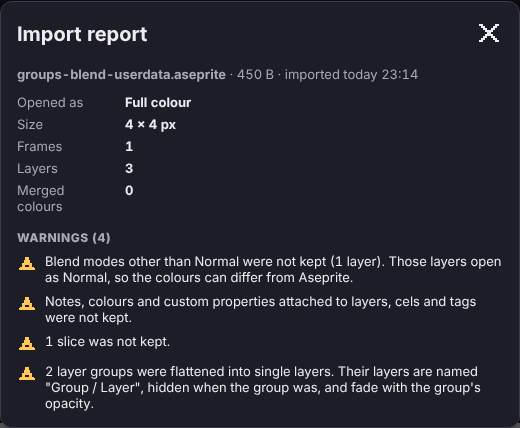
- Look at the notice. When the file held something the editor does not keep, a short message names it. The full list is in File, then Import report.
The file always opens as a new project named after the file. Your other projects are not touched, and the original file is never changed. Nothing is sent anywhere: the file is read inside your browser tab. If you drop several files at once, each one becomes its own project.

What comes across
- Frames and their times. Every frame opens with its own duration. Times run from 10 to 65535 ms here, and the Import report says if any were moved into that range.
- Layers. Names, which ones are visible, which are locked, and layer opacity. Hidden layers open hidden. Up to 64 layers.
- Layer groups. Groups are flattened into single layers, named like "Group / Layer". A layer is hidden when its group was, and it takes on the group's opacity.
- Cels. Raw and compressed pictures both open. A cel that sticks out past the canvas is cut at the edge, and the report says so.
- Linked cels. A cel that Aseprite links to an earlier frame stays linked: the frames share one picture, and editing one changes the others. Frame, then Unlink cel, gives a frame its own copy.
- Blend modes. Normal, Multiply, Screen, Overlay, Darken, Lighten, Addition and Subtract are kept on layers outside any group. A blend on a layer inside a group, or one of the other Aseprite modes, opens as Normal and the report says so. The result can differ from Aseprite by one level in a colour, because the rounding is not the same.
- Tags. Name, first and last frame, and the direction: forward, reverse or ping-pong.
- The palette. An indexed file opens as an indexed project with its own palette, and index 0 is the clear colour. Both the current palette chunk and the older ones are read.
- Colour modes. Indexed files open indexed. RGBA files and grayscale files open in full colour, and the editor then offers a Convert to palette button if the picture has 255 colours or fewer. An indexed file also opens in full colour when some of its cels are partly see-through, or when a Background layer uses the transparent colour as a solid colour, because a palette cannot hold either.
The size limits are those of the editor: 512 by 512 pixels, 256 frames and 64 layers. A file over a limit is refused with a plain message that gives the number, rather than opened in part.
What is left out
PixelFlipbook is a smaller tool than Aseprite, and some parts of a file have nowhere to go. These are dropped, and the editor tells you when it dropped something:
- Some blend modes. Normal, Multiply, Screen, Overlay, Darken, Lighten, Addition and Subtract are kept. A layer set to any other mode (Color Dodge, Hue and so on), or a blend set on a layer inside a group, opens as Normal, so the colours can differ from Aseprite. The notice counts the layers.
- User data. The notes, colours and custom properties that can be attached to layers, cels and tags.
- Slices, including 9-patch and pivot data.
- Tilemaps and tilesets. A tilemap layer is not drawn. A file that holds nothing else is refused with a message that says why.
- Palette changes along the animation. Only the first palette is kept.
- Tag repeat counts. A tag here does not store how many times to play. A ping-pong tag that plays in reverse opens as an ordinary ping-pong.
- Reference layers open, but hidden.
The short message that appears when the project opens looks like this: "Opened from Aseprite. Left out or changed: blend modes, user data, 1 slice, layer groups flattened." It names everything in the Import report that changed the picture or the animation, and a plain file says nothing. The Import report keeps the longer sentences.
Save a project as .aseprite
Going the other way is built in. Open File, then Export, choose the Aseprite tab and press Export .aseprite. The file keeps your layers, their blend modes, frame times, tags and palette, and frames that share one picture are written as linked cels. An indexed project is written as an indexed file, and a full-colour project as a full-colour one. Each picture is compressed, and a picture with nothing in it is left out of the file.
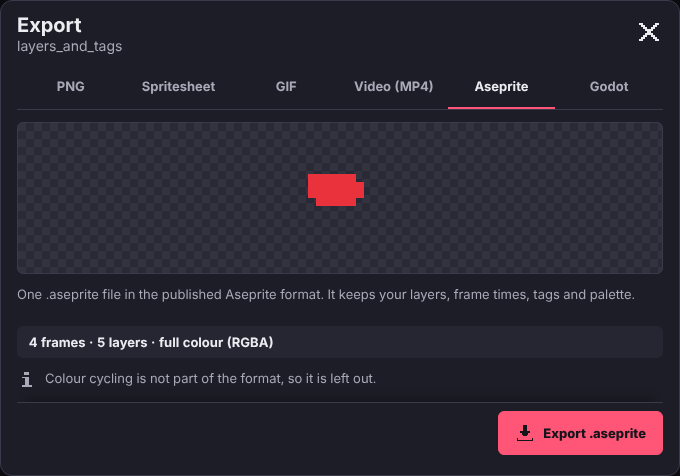
One thing is not written. Colour cycling is not part of the format, so it is left out and the dialog says so. Aseprite may round a blended colour one level differently from this editor, because the two do not round in the same order.
One honest limit: PixelFlipbook tests this export by reading its own files back. The test builds many random sprites, exports each, opens the result and checks it matches. The import side is checked against files that Aseprite wrote. The export has not been opened in Aseprite itself, because Aseprite was not available when this was built. If you rely on it, open an exported file in your own copy of Aseprite first.
How it was checked
The reader is held to the published Aseprite file format. It was checked against fifteen files written by Aseprite itself, taken from the test files of an open-source Rust library, asefile, which is under the MIT licence. For each file that has a picture beside it, the editor's composite of the frame matches the picture Aseprite saved, pixel for pixel. The exception is a file with a half-see-through layer, where the match is within two levels of 255 in each channel, because Aseprite and the editor round the blend differently.
Beside those are eight small files written from the format description, for cases the real ones do not cover, and a set of deliberately broken files: a size that lies, a count that is too large, a link to a frame that does not exist, and a compressed picture that unpacks to far more than it says. The reader works inside fixed limits: 64 MB of unpacked picture data, 64 MB of stored pictures, a cap on the number of chunks, and no more cels in a frame than there are layers. A file that goes past a limit is refused with a plain message. A file within the limits can still use tens of megabytes while it opens, so a very large file can be slow on a phone.
Not covered: files from Aseprite versions whose layout differs from the published description, and tile-based work, which the editor does not have. If a file you own will not open, the message says why.
Other ways in and out
Not everything has to be a file in the Aseprite format. A PNG sprite sheet opens too, with the cut dialog, and the sheet to GIF guide shows how. A sheet with an Aseprite JSON file opens with its tags and times, and the Aseprite JSON guide lists the fields. The Aseprite alternative page says what the editor covers next to Aseprite and what it does not, and that includes the gaps listed above.
Brand names belong to their owners. PixelFlipbook is its own program and is not affiliated with Aseprite or its makers.